
Connect an RFID tag to a member
New experience - (We use this method)
Tap the Welcome screen and then use the magnifying glass in the top right corner to search for the person you'd like to connect. Tap their name and then tap Connect an RFID and then simply hold the RFID tag to the reader. That member is now connected to that RFID tag.
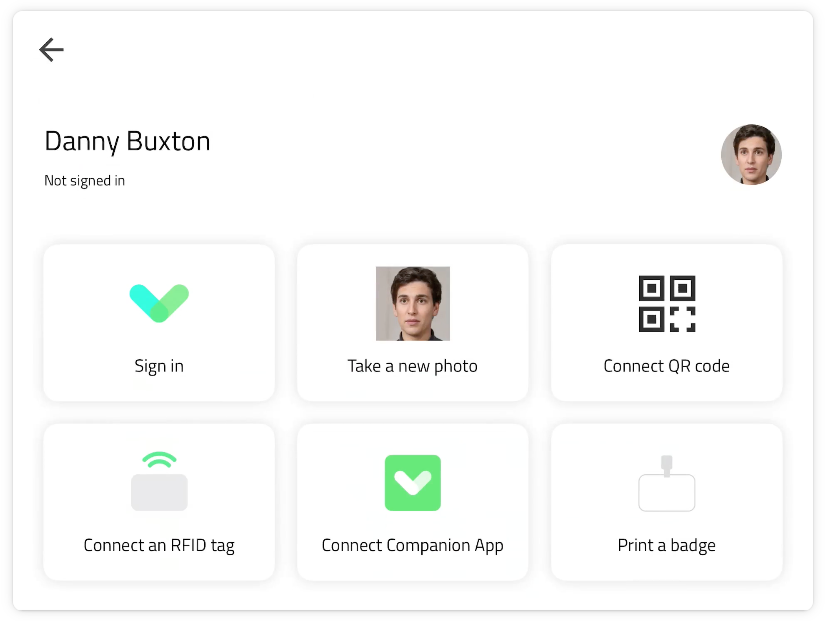
Important: Each RFID card is unique and can only be connected to one person.
Original experience
From the iPad select the relevant group and then in the grid view select the person who you want to connect and tap their name. Below 'Sign In' or ‘Sign out’, depending on your current status, select Options > Connect an RFID and then tap the reader with your tag.
Portal
If you already have the RFID codes for your door access cards or fobs, you can add them from the Sign In App portal. To do this, go to Manage > Groups > Select group > Members and search for the member you’d like to connect the RFID to. Hover over them and click Edit and then select QR / RFID, from here you can enter the RFID tag for that member.

Using Sign In App Tap
Just Tap. Once set up, all you need to do is hold your RFID tag on Sign In App Tap when you want to sign in or out.
If you encounter any further issues, feel free to contact us directly:
Email: helpdesk@springwellschool.net
Portal: springwellschool.freshdesk.com
Phone: 02380426878